
Open the Apollo platform and click Settings. Then, click Integrations under the “Configurations” section (The gear on top right corner). Scroll down to...
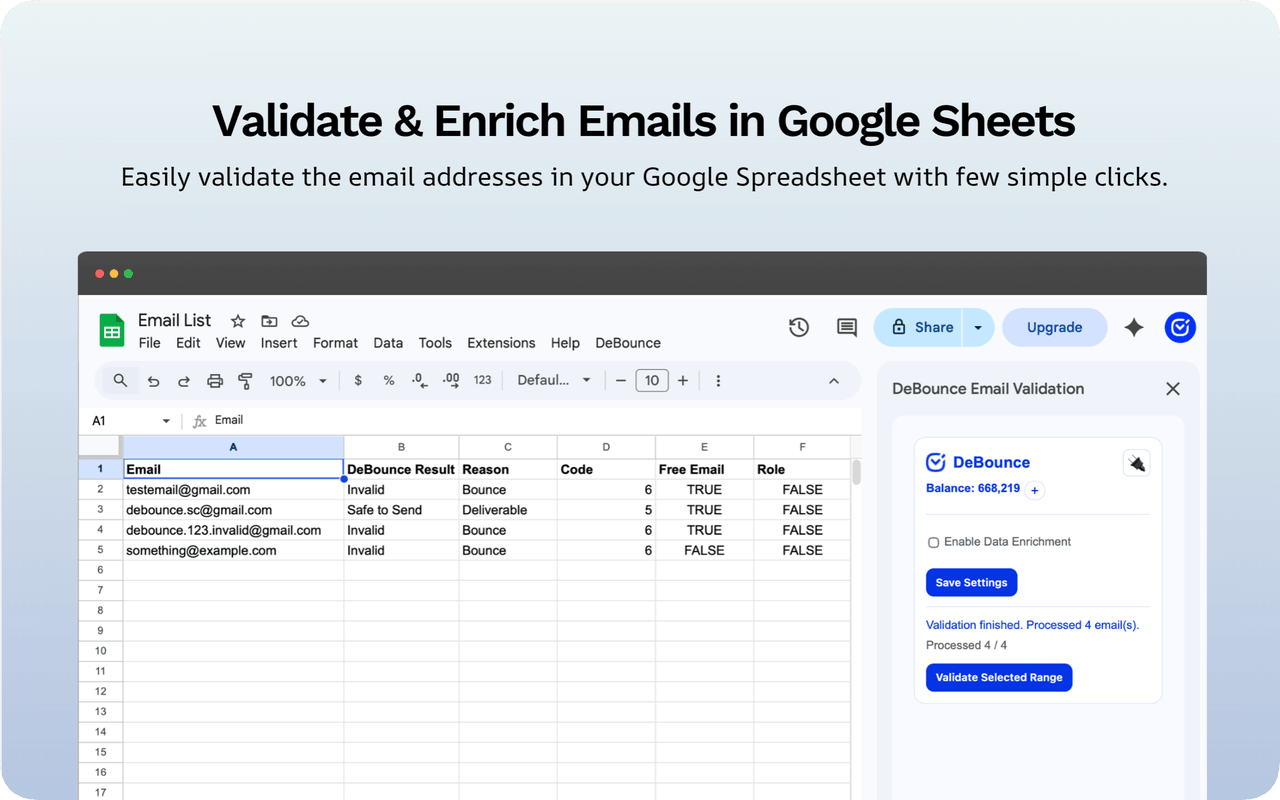
DeBounce for Google Sheets lets you validate and (optionally) enrich email addresses directly inside Google Sheets.
Listing: DeBounce for Google Sheets™
Before you start
- Use Google Sheets in a web browser.
- You’ll need a DeBounce account and an API key.
1. Install from Google Workspace Marketplace
- Open the listing:
DeBounce for Google Sheets™ - Click Install.
- Accept the permissions when prompted.
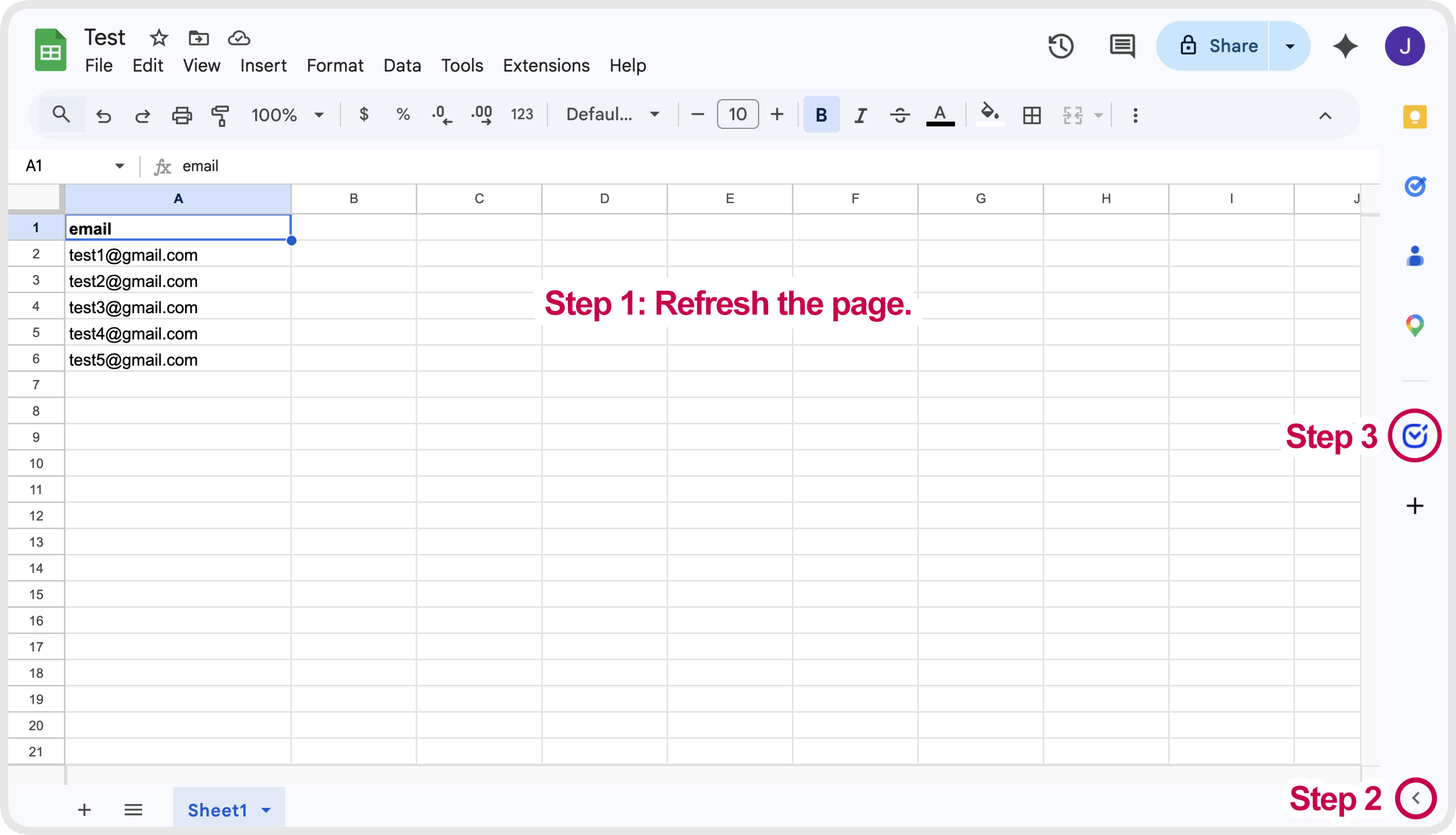
2. Refresh your page once (important)
After installation completes, refresh your Google Sheet page once so the DeBounce icon appears on the right panel.
3. Open the right-side add-on panel
- On the right side of Google Sheets, click the expand icon < to open the add-on panel.
- Click the DeBounce icon in that panel.
4. Connect your API key
- Inside the DeBounce sidebar, paste your DeBounce API key.
- Click Save and Continue.
- (Optional) Enable Data Enrichment.
5. Validate your emails
- Select the column or range containing email addresses in your sheet.
- Click ↕ Validate Selected Range.
- Review results written into the new columns to the right.
Troubleshooting
I don’t see the DeBounce icon on the right panel
- Refresh the page once (after installation).
- Click the right-side expand icon < again.
- Click the DeBounce icon in the expanded panel.
Permission required / keeps loading
- Click Grant permission and complete the Google authorization prompt.
- Wait until authorization finishes, then refresh the sheet and open DeBounce again.
What the welcome card means
- Use the Open Validator button to open the full DeBounce validator sidebar.
